Creating Internet Connection Resources
This page explains how to create an Internet Connection resource using the OCX Portal.
Preparation
Please confirm the following before creating an Internet Connection resource:
- Your User Role is either
adminoruser.
Procedure for Creating Internet Connection Resources
-
Log in to the OCX Portal.
-
Click [Internet Connections] from the left navigation bar.
-
On the Internet Connections page, click [+ Create] in the upper right corner.
-
The screen will switch to the Internet Connection resource creation steps. Configure the input items as follows and click [Create].
-
Name
- Enter an arbitrary name. Using a name that is easily identifiable will make management easier.
- Maximum length is 40 characters.
- Any leading or trailing whitespace in the resource name will be automatically removed.
-
Location
- Select from the following options. Please note that the location cannot be changed after the resource is created.
Location Tokyo Osaka
-
-
A confirmation pop-up will appear. Review the costs associated with the creation and click [Create].
-
Once the created resource appears in the list at the top of the screen, confirm that its status has changed to available.
- Click [Refresh] in the upper right corner to update the status.
This completes the creation of the Internet Connection resource.
Once an Internet Connection resource is created, you will be able to add Additional Prefixes to it. For the procedure to add prefixes, please refer to Creating Additional Prefix.
Remark 1: Resolver DNS Addresses
You can check the resolver DNS addresses on the detail screen after creating the Internet Connection resource. If necessary, please use the Primary DNS Address or Secondary DNS Address.
Remark 2: Assignable IP Addresses
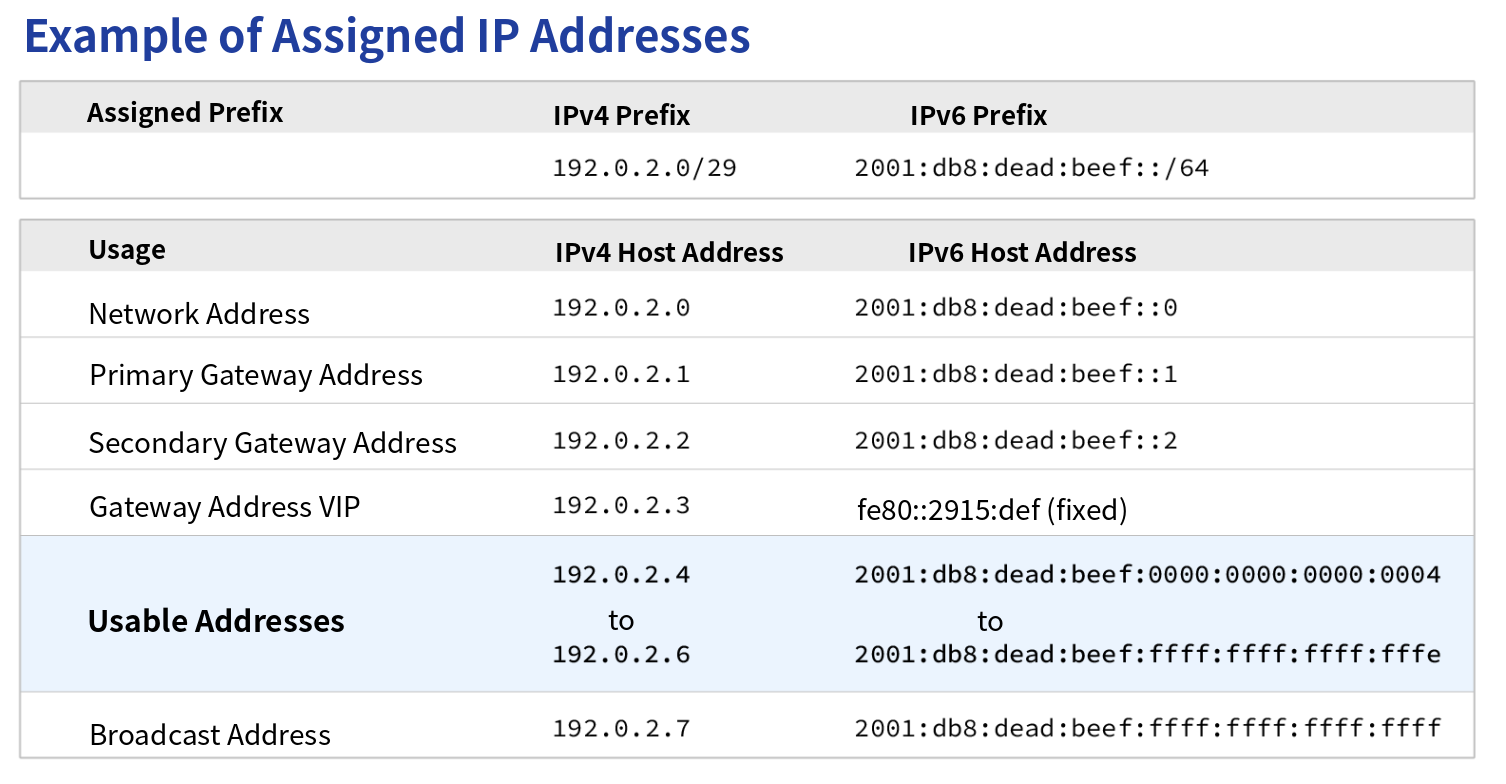
As shown in the "Example IP Address Allocation" table below, certain IP addresses are already reserved by the OCX system. The range of IP addresses that can be configured on the customer equipment side is described in the Usable Address section.
*The table below is an example only. Please check the Internet Connection details screen for your actual assigned IP addresses.