Dashboard and Operation Menu
OCX Portal Basic Operation Menu
Upon signing in to the OCX Portal, you will be directed to the dashboard screen shown below. The operation methods for items 1 to 22 are described on this documentation site. Other functions are labeled A to F.
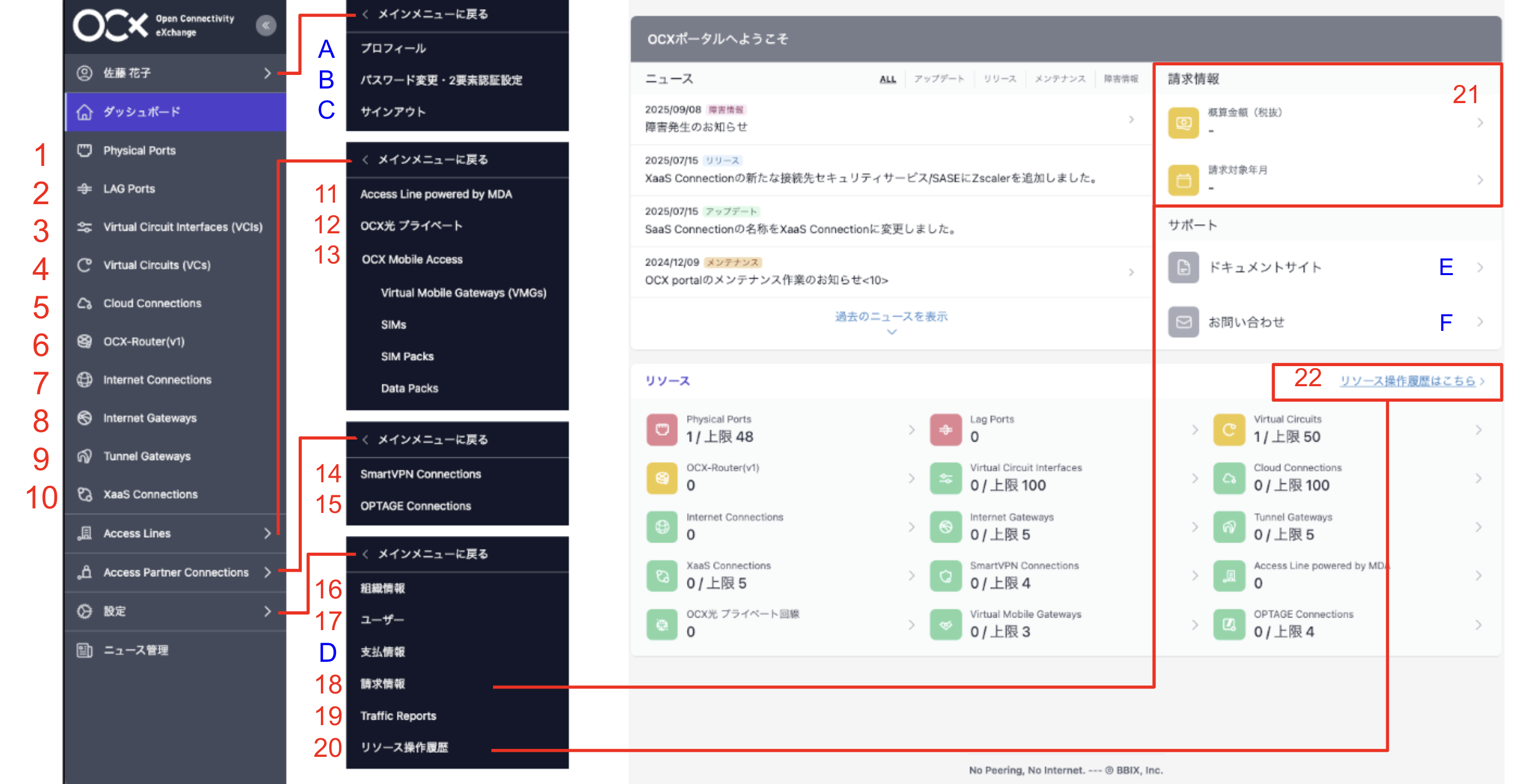
*This is the portal screen as of March 2026.
| No | Menu Name | Feature |
|---|---|---|
| 1 | Physical Ports | Create, update, and delete Physical Port resources. |
| 2 | LAG Ports | Resources that logically combine multiple Physical Ports into a single line. Create, update, and delete them. |
| 3 | Virtual Circuit Interfaces (VCIs) | Create, update, and delete VCI resources. |
| 4 | Virtual Circuits (VCs) | Create, attach (set destination), detach (remove destination), update, and delete VC resources. |
| 5 | Cloud Connections | Create, update, and delete Cloud Connection resources. |
| 6 | OCX-Router(v1) | Create, update, and delete OCX-Router(v1) resources, Router Interfaces, BGP Parameters, and Static Routes for routing configurations. *Refer here for an overview. |
| 7 | Internet Connections | Create, update, and delete Internet Connection resources and additional prefixes. *Refer here for an overview. |
| 8 | Internet Gateways | Create, update, and delete Internet Gateway resources, NAT IP addresses for conversion, BGP Parameters, and Static Routes. *Refer here for an overview. |
| 9 | Tunnel Gateways | Create, update, and delete Tunnel Gateway resources, connect/disconnect with optical lines, and manage Static Routes. *Refer here for an overview. |
| 10 | XaaS Connections | Create, update, and delete XaaS Connection resources, NAT IP addresses, and BGP Parameters. *Refer here for an overview. |
| 11 | Access Line powered by MDA | Apply for Access Line powered by MDA resources and check their usage status. *Refer here for an overview. |
| 12 | OCX Hikari Private | Apply for OCX Hikari Private lines and check their usage status. *Refer here for an overview. |
| 13 | OCX Mobile Access | Apply for OCX Mobile Access resources and check their usage status. *Refer here for an overview. |
| 14 | Smart VPN Connection | Create, update, and delete Smart VPN Connection resources. *Refer here for an overview. |
| 15 | OPTAGE Connection | Create, update, and delete OPTAGE Connection resources. |
| 16 | Organization Info | View and update the company information registered with OCX. |
| 17 | Users | View users who can sign in to the OCX Portal and change their permissions. |
| 18 | Billing Information | Check the billing amounts for the resources used in OCX. (Example: Checking Physical Port usage fees) |
| 19 | Traffic Reports | Check the amount of traffic flowing through Physical Ports, LAG Ports, and VCIs. *Refer here for an overview. |
| 20 | Resource Control History | View the history of creation, modification, and deletion of resources belonging to your organization. *Refer here for an overview. |
| 21 | Billing Information (Shortcut) | Click to check the billing amount and the target billing month/year. |
| 22 | Resource Control History (Shortcut) | Click to view the resource operation history. |
| No | Menu Name | Description |
|---|---|---|
| A | Profile | Displays information for the currently signed-in OCX account (user). |
| B | Password Change / 2FA Settings | Allows you to change your password and set up two-factor authentication. |
| C | Sign Out | Signs you out of the OCX Portal. |
| D | Payment Information | Allows you to check the payment status of OCX resource fees. |
| E | Documents | Redirects you to this documentation site. |
| F | Contact Us | For inquiries regarding OCX, please contact us via the [Contact Us] button on the right side of the dashboard. |
Action Menu
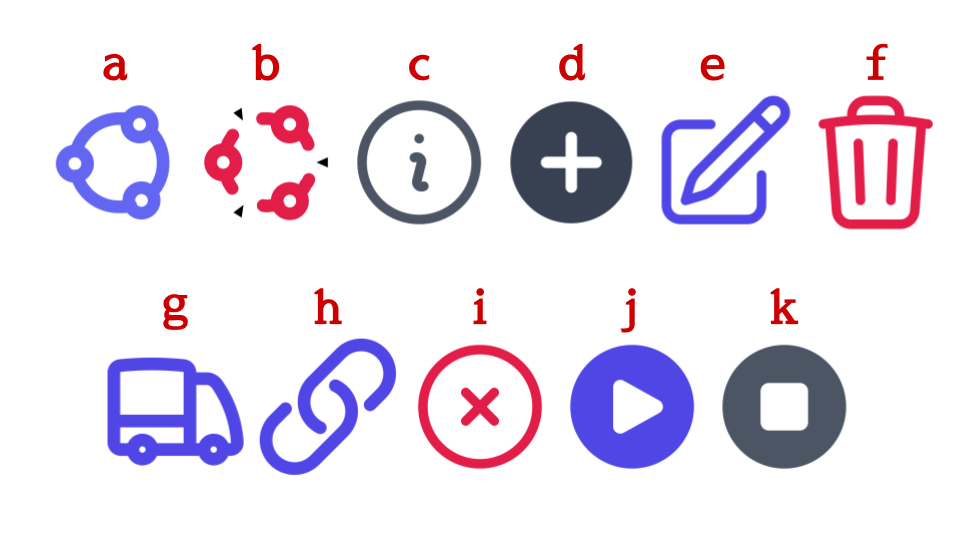
This section explains the operations available under the Actions column on the right side of each resource list.
| No | Action Menu Name | Description |
|---|---|---|
| a | Attach Icon | Attach a resource (set destination). |
| b | Detach Icon | Detach a resource (remove connection). |
| c | Information Icon | View configuration details for the corresponding resource. |
| d | Create Icon | Create a new resource. |
| e | Edit Icon | Modify settings for the corresponding resource. |
| f | Delete Icon | Decommission (delete) the corresponding resource. |
| g | Ship Icon | Execute shipping for the corresponding resource/item. |
| h | Register Icon | Register the corresponding resource/item. |
| i | Link Icon | Link the corresponding resource/item. |
| j | Cancel Icon | Cancel the corresponding resource/item. |
| k | Start Icon | Start the corresponding resource/item. |
| l | Stop Icon | Stop the corresponding resource/item. |
| m | Reattach Icon | Reconnect the corresponding resource/item. |
| n | Release Icon | Release the corresponding resource/item. |